Download Peonix for Windows
The installer needs no admin rights and there’s no separate .NET to install. The app installs its game addon itself — with a name unique to your copy.
Peonix 0.9.15 for Windows
Windows 10 and 11, 64-bit · 48.2 MB
Free until November 17, 2026 — for everyone who lets the app send usage statistics.
The download comes after signing up: your email and a code from the letter, no password.
SHA-256
1bcda33964c341f4f124e280bb00547528cbf90c49ee6250d9f104c9bf863b53
To check the file, run Get-FileHash with the installer’s path in PowerShell — the string must match.
What’s new in 0.9.15
- Grinding: the mount is called on the first try — the bot stops first, then calls it; a “while moving” refusal is retried at once, not a minute later.
- Grinding: “Ride to far mobs” (in “Behaviour”, on by default, needs a mount key) — with no targets nearby for 7–22 seconds the bot rides along the route looking for them and dismounts before a fight.
- Grinding: when something is hitting you, loot waits — first the fight with the attacker, then both corpses; after a kill in combat the bot looks around first.
- Grinding: “Dashes on the move” are more frequent (every 15–45 seconds) and work on route bends and on detours; another route closer than 40 yards is reached on foot, without taking off.
- End of work: when “Total run time” is up, the bot logs out of the game after the Hearthstone and only then stops.
- Flight: places where the bot hit something in the air or couldn’t take off are remembered per continent between runs — the next flight past them goes higher; on the routes map such a place can be forgotten.
- Rest: the food button without a key of its own eats only plain food and drink — feasts and “Well Fed” dishes are left alone; after conjuring food a mage waits longer and doesn’t cast a second time in vain. The addon updates itself (revision 65).
- Combat assistant, healer: keys on the bars are no longer lost after a flight; a heal refused “while moving” isn’t pressed endlessly — it waits a second while other spells go on; druid: Tranquility and Convoke the Spirits not on the move; the journal shows the group’s health.
- Other game versions: the addon is written for the running client and rewrites itself when the version changes; the checks show a “Game version” line: work is verified on 12.1, another version gets a warning.
- Link to the site: if the network can’t see the site directly, the app goes through a spare address by itself and returns when the direct way works; the same in the phone app (Peonix Remote 1.8.0).
If Windows warns you
The installer isn’t signed with a developer certificate yet, so SmartScreen may show “Windows protected your PC” with “Unknown publisher”. That’s expected:
- 1.click “More info”
- 2.then “Run anyway”
Your browser may also ask whether to keep a rarely downloaded file — choose “Keep”.
Only download Peonix from this site and compare the SHA-256 — that way you know the file hasn’t been tampered with.
After the download — five steps
- 1
Install
Run the installer: the app appears in the Start menu and, if you like, on the desktop.
- 2
Sign in with email
Menu “⋯” → “Account & subscription”: the email you signed up with on the site and the 6-digit code from the message. No password.
- 3
Click “Take part”
On the “Free period” card right there — “Take part — send statistics”. Without consent you need a subscription.
- 4
Install the addon
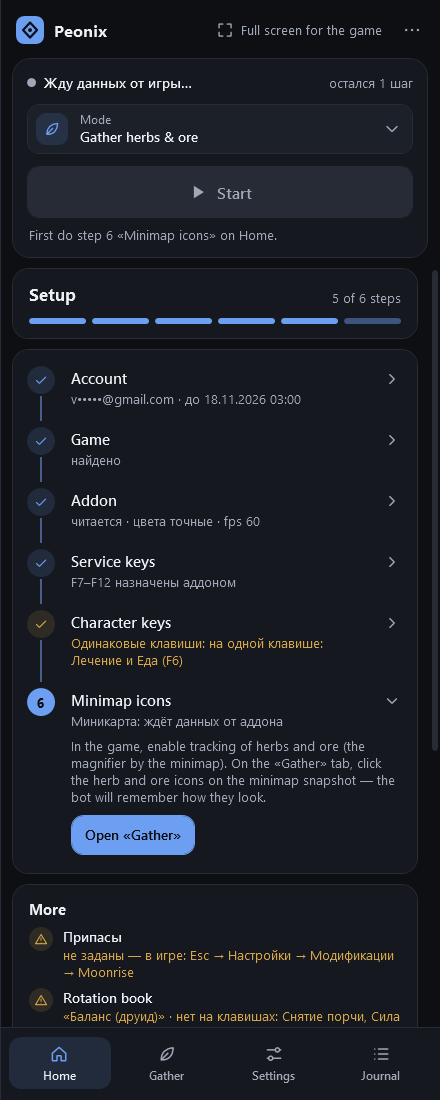
Setup on the Home page finds the game and installs the addon in one click. Then type
/reloadin the game. - 5
Pick a mode and Start
Mob grinding, herb and ore gathering or the combat assistant. Setup tells you whatever is still missing.
System requirements
- System
- Windows 10 version 2004 or later, Windows 11; 64-bit
- Install
- No admin rights; .NET is built in, nothing extra to install
- Game
- World of Warcraft Retail, Midnight 12.1 — not Classic, not private servers
- Game window
- Visible on screen: not minimized, top-left corner uncovered. Windowed mode is best — the app then docks as a column beside the game
- Graphics
- 20+ FPS in the background, default gamma and brightness, no HDR or colorblind filters
- Keys
- Attack on F5; F11 stops the bot from any window
- Internet
- Needed to start: the app checks your subscription. Without a connection a running session continues for up to an hour
What each mode needs
- Mob grinding
- A recorded route; a flying mount for flights and town trips
- Gathering
- A flying mount, a visible zoomed-out minimap, herb or ore tracking
- Combat assistant
- Spells on action bar buttons with keys, enemy nameplates on (V)
What gets installed
- The Peonix app — into your Windows user folder.
- The addon — into the game’s standard AddOns folder, under your copy’s unique name.
- Your data — routes, profiles, logs and reports — also in your user folder. Uninstalling the app keeps it.
- The app installs updates itself: it fetches the new version from this site, checks its signature and SHA-256, and installs it when you close the app — or right away with “Update now”. It installs nothing while the bot is working.
Peonix on your phone
Alerts, players’ messages and the bot’s status — in the app for Android and iPhone.
About the app